Notion Favorites Directory🔮


Right here, I explain to you how the free template for Notion "Favorites Directory🔮" that I created works and that you can find in the shop.
Introduction
“What was the name of that site again…”
This template allows you to create a directory of favorite sites in the long term where it is pleasant and efficient to search by category or by need.
The AI 🔮 will automatically fill in information for you when you add a site. Use it to start your own list 🫡
By default, the page is filled with my favorites ⭐️ for design and more.
Since the beginning of this list in March 2022, I have used it a thousand times and added about a hundred sites.January 2025: Added a tutorial for using an extension to create favorites with one click.September 2024: Added Notion's AI.
Create your own list
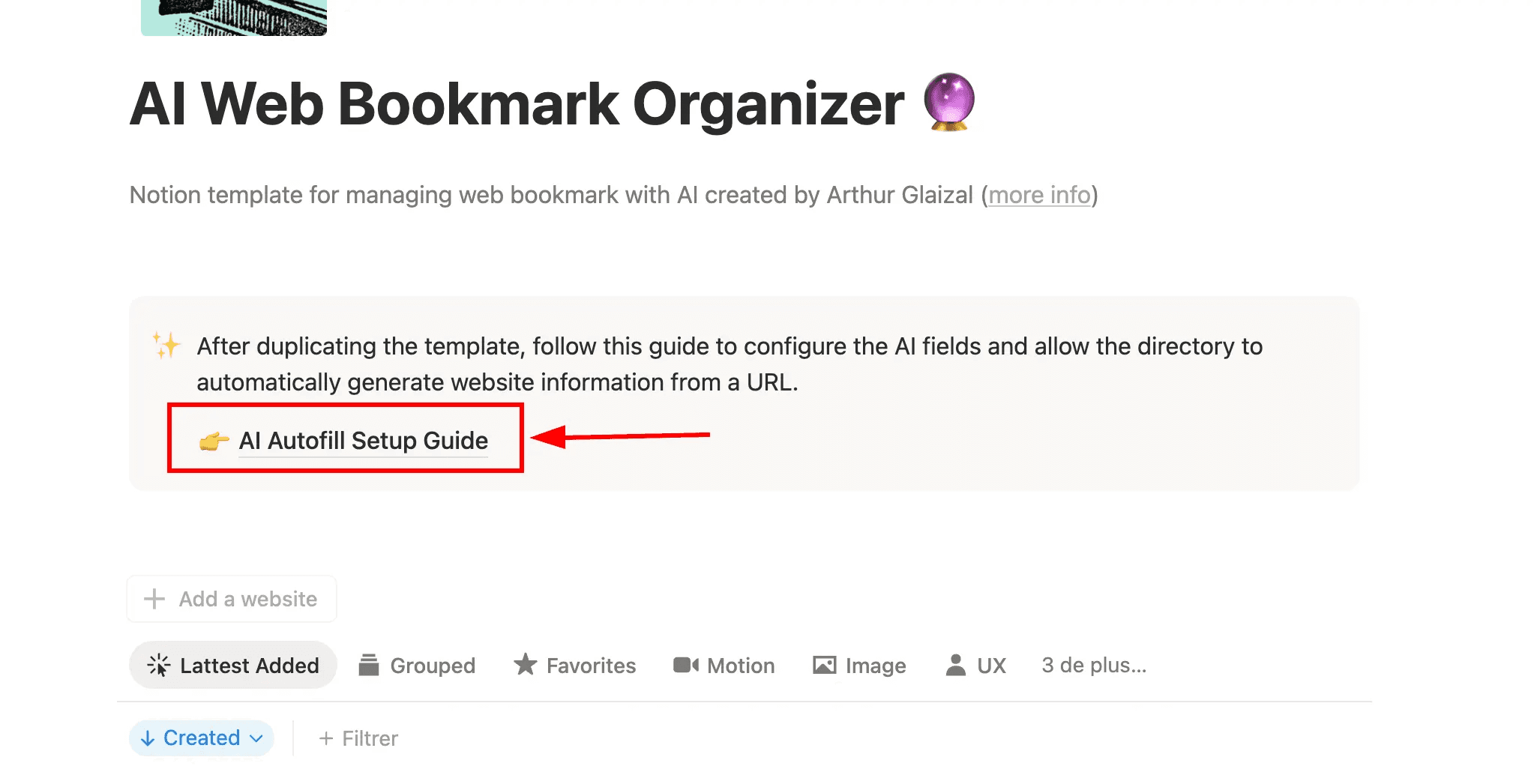
You can start your list from mine. To copy the page, use the “Duplicate” button, and the page will be added to your Notion space.

Template description
Add a favorite
With Save to Notion (recommended)
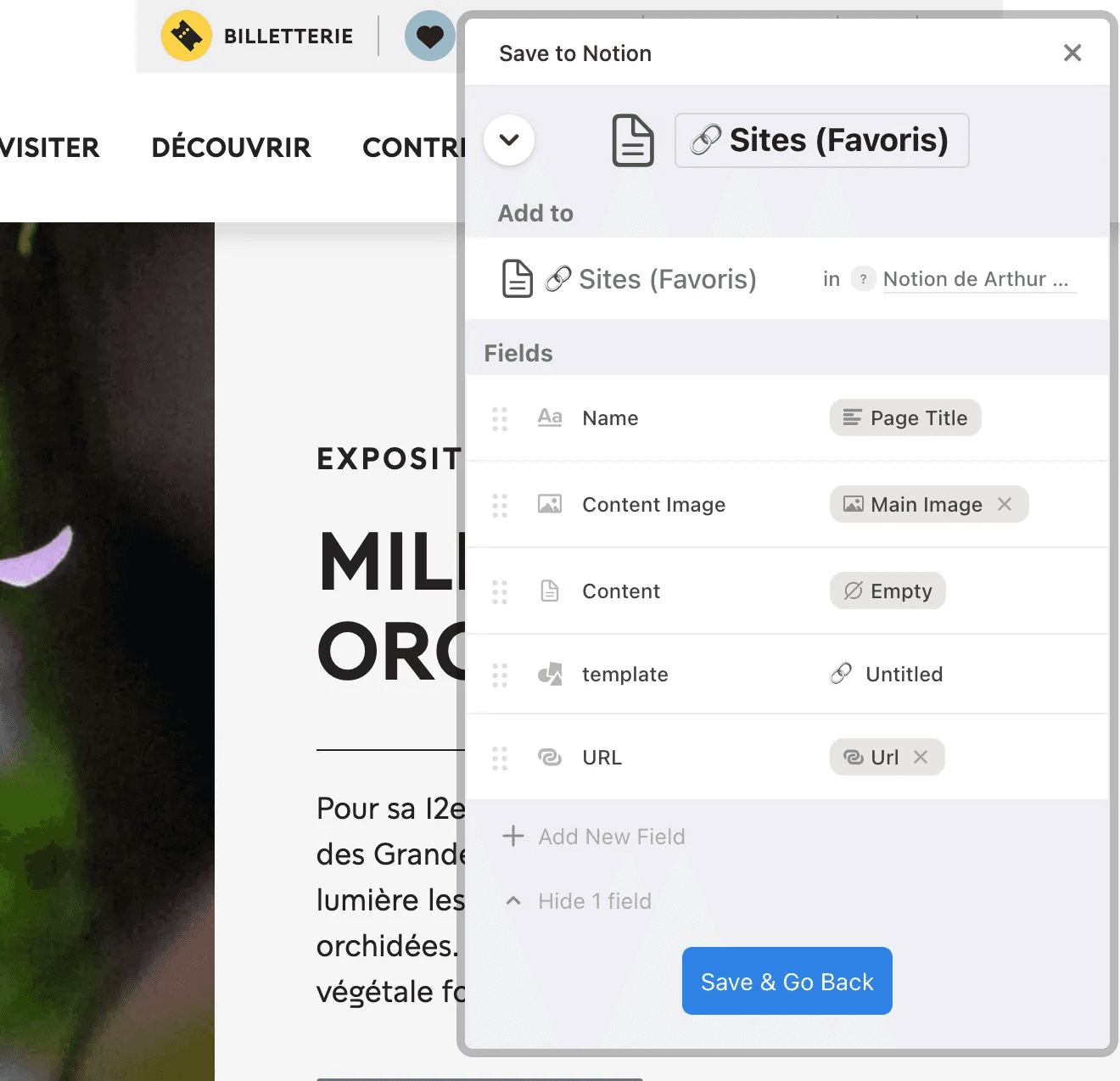
To create a favorites page with the title, URL, and a screenshot in one click, use the chrome extension “Save to Notion”.
The name of the database to use is “🔗 Sites (Favorites)”.

Manually
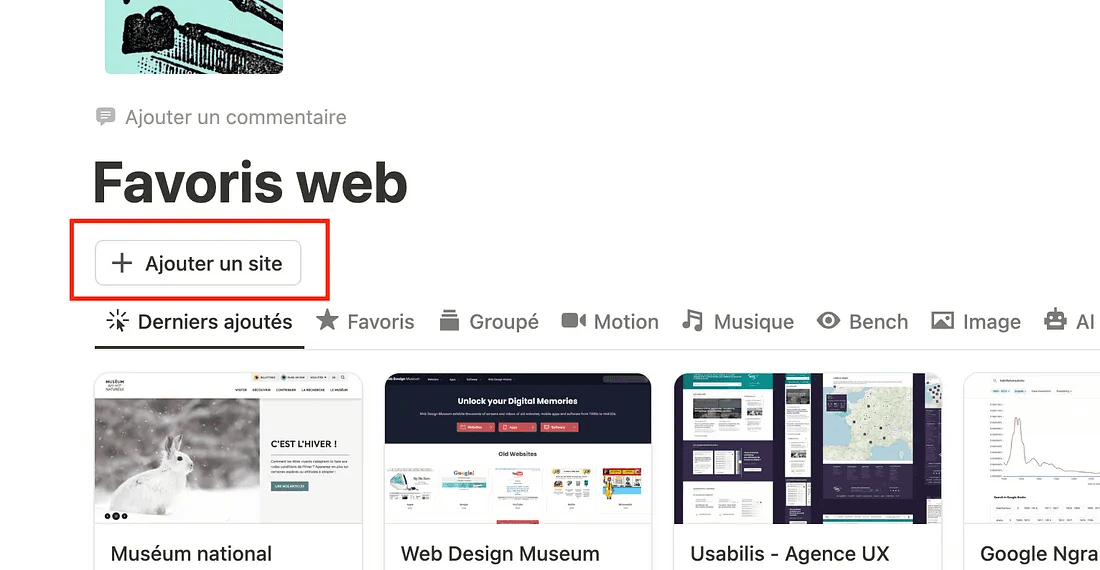
Click the “Add a site” button and fill in the fields for the new page.

Search and navigation
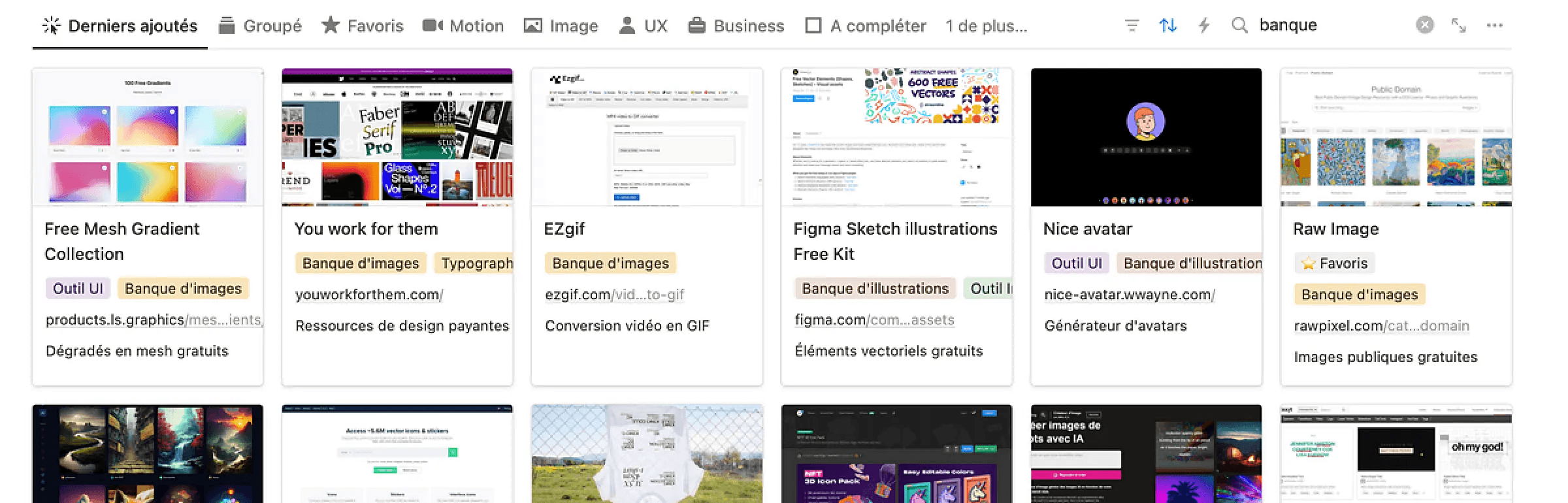
The search works on all information: Site name, categories, description, URL, etc. It is available in two places. In the header at the top of the site (shortcut Ctrl + K) or when hovering over the database.

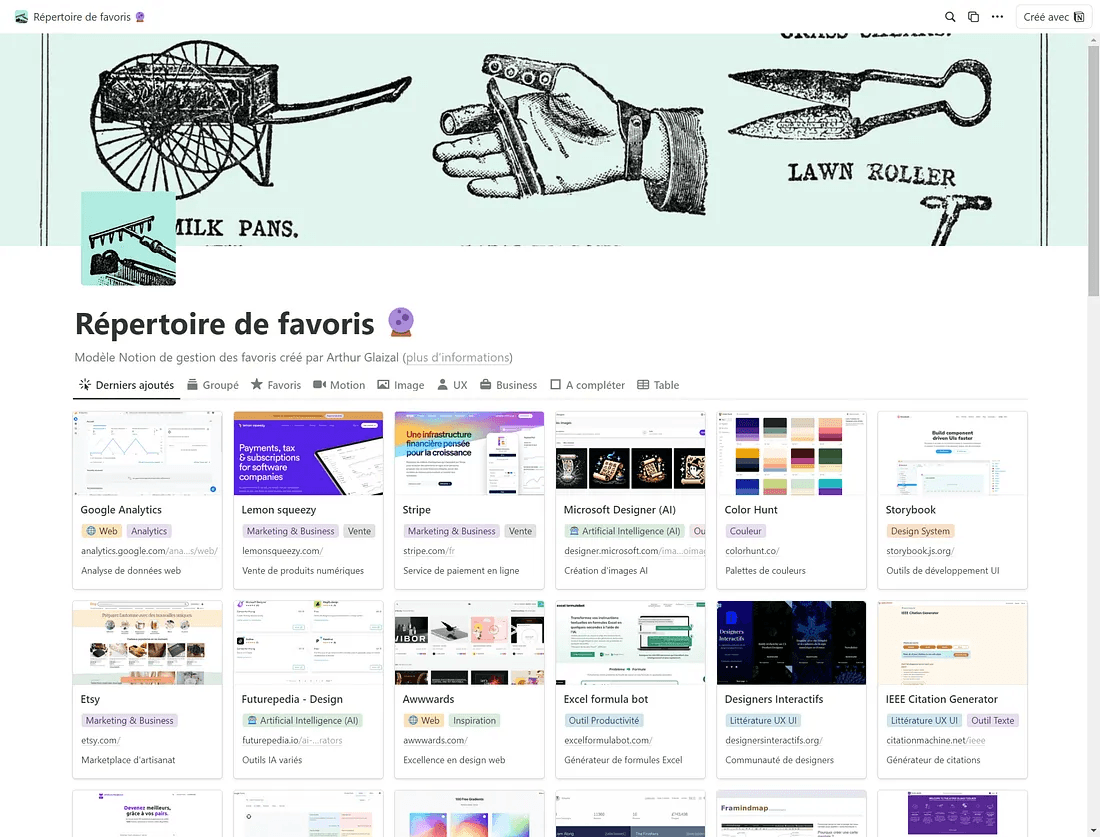
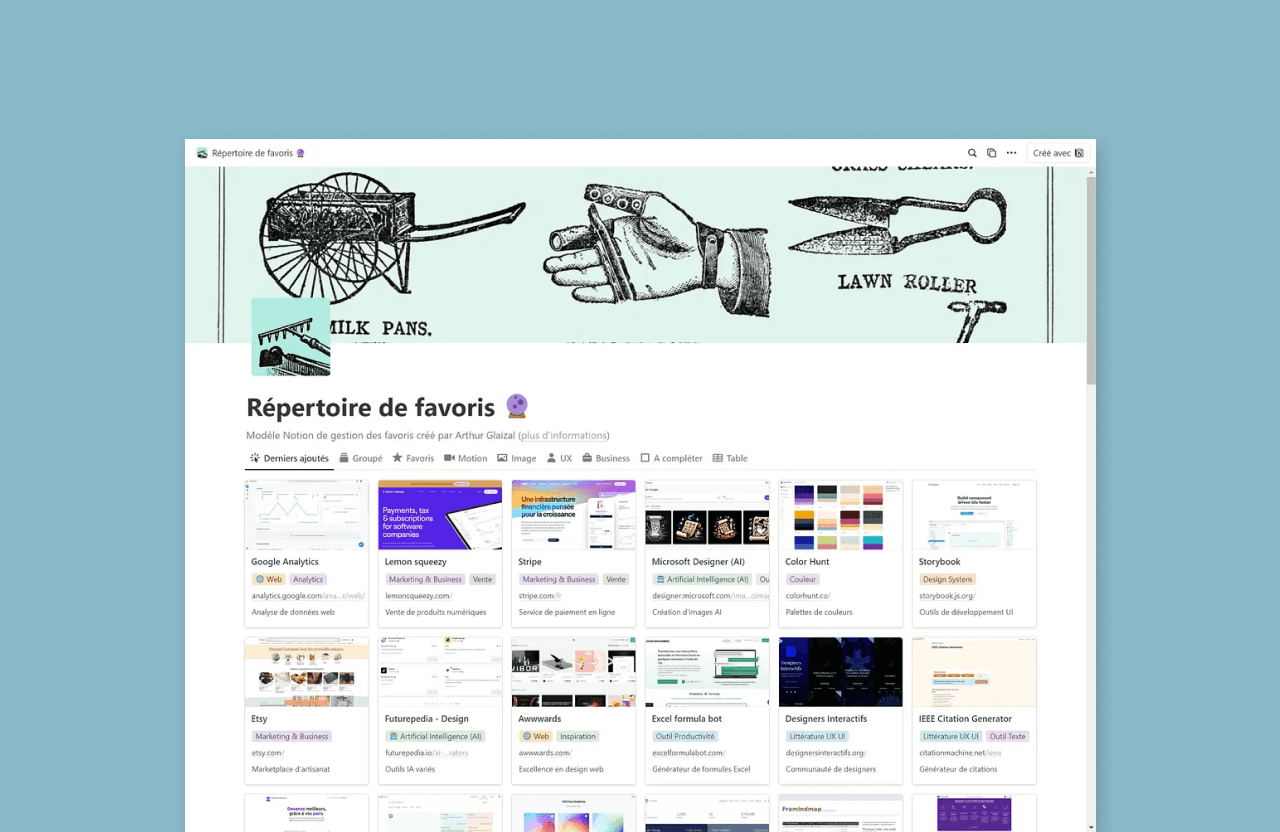
The tiles display summarized information about the site.

A filtering menu is available to categorize sites according to their uses.

Site page
The key information retained for each site is:
Title: Site title.
URL: Site link.
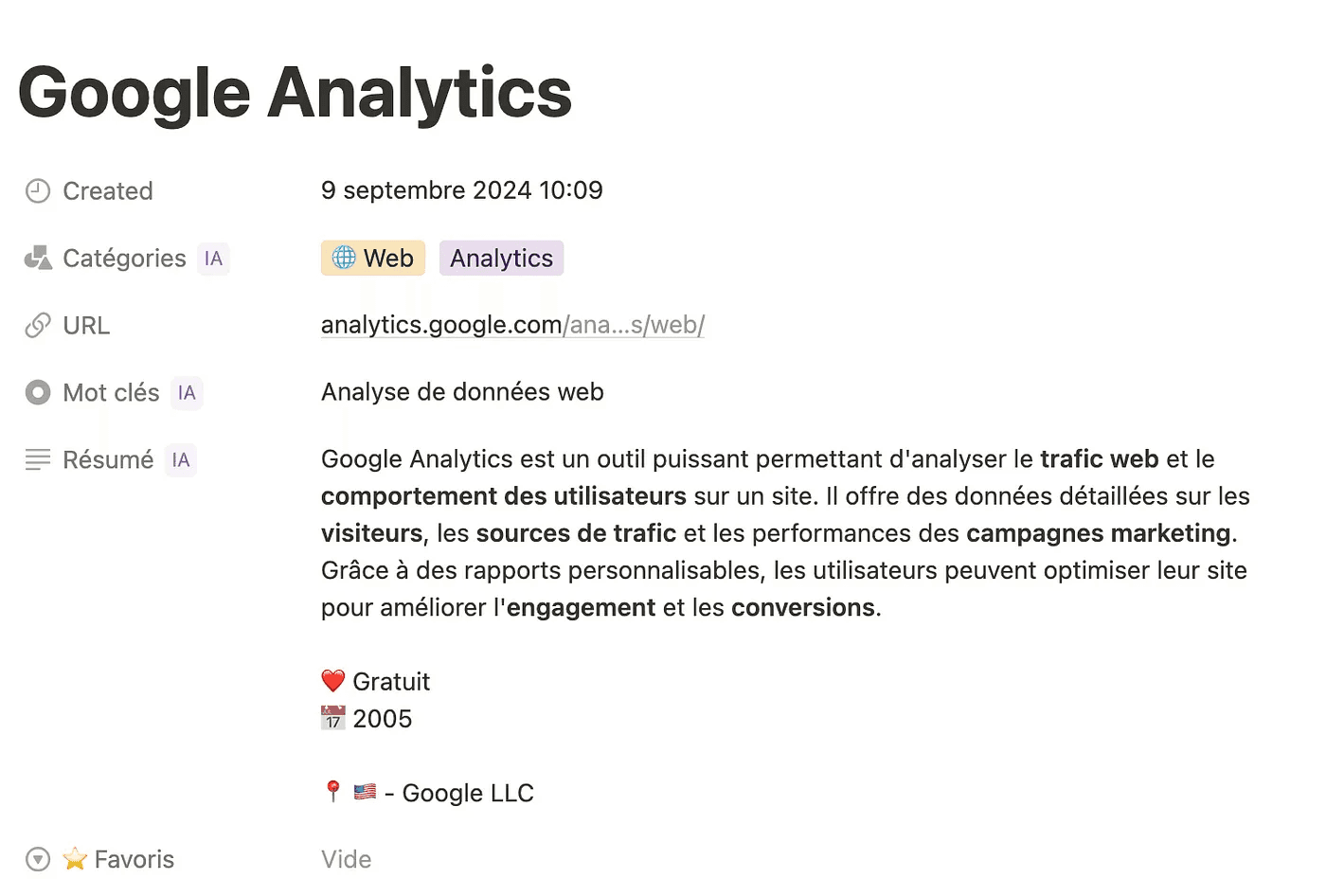
Categories 🔮: Selection of site categories by AI. Useful for filters.
Keywords 🔮: Description by AI in three or four words about the site. Helps with categorization and displays this short description in the site gallery. Convincing result.
Summary 🔮: Description by AI in three or four sentences about the site. Provides context if you forgot the site's interest. Also indicates if the site is paid, the site's creator, their nationality, and the year of creation.
English Summary🔮: Keywords sometimes come to mind more easily in English (e.g., background remove), so I added this field.
Creation Date: Automatically filled in by Notion. Used for sorting.
Favorites ⭐️: Allows sorting of the best favorites.
Screenshot 🏞️: Visually and quickly identify the site.

Why this project?
Design is overflowing with new tools: templates, sites, software, plugins, etc. Not always easy to keep up with or remember good resources.
My favorites were overflowing, and I needed a solution to organize them and keep them long-term.
Creation process
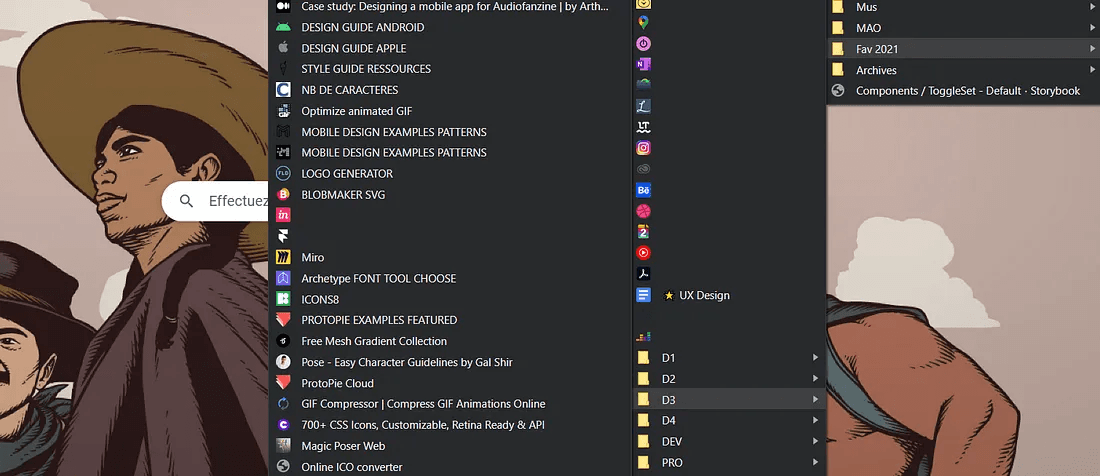
I was using browser favorites, but it was a hassle 😬: hard to find, no search, and a maze to navigate to get to the right link (hello Accot-Zhai Steering Law).
The first attempt was to create a Google Drive list to facilitate collaboration with other designers.
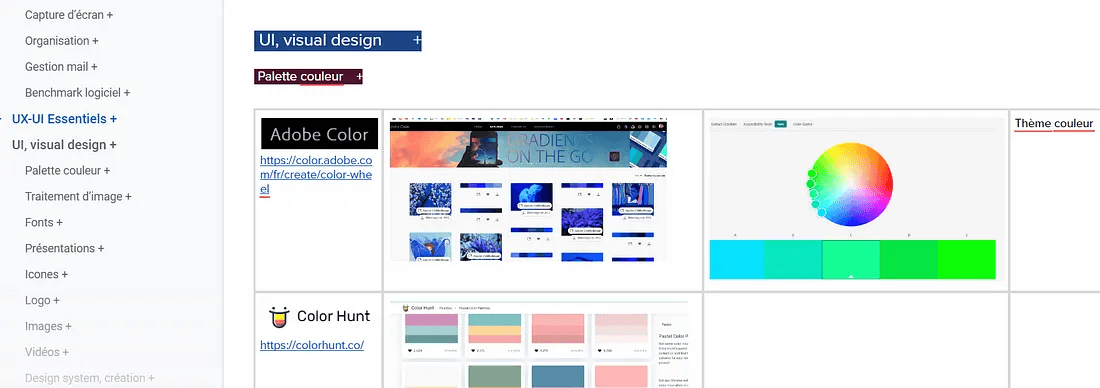
Although the Google Drive document offered a summary and a search function (CTRL+F), it also had its disadvantages: the layout was not suited to the screen size, loading was slow, the visual aspect was cluttered, and adding new sites was difficult.
I also realized that favorites were very personal to me. I didn't want to discover sites, but to find sites. A shared list in edit mode was not suitable.

I finally found the ideal tool: Notion 🤗. It offers filtering, layout, and search functionalities while remaining simple to edit. It’s a good compromise between the time needed to add a favorite and the result obtained.

🪐 Note that Notion also allows collaboration if you want to build a list with others.
Right here, I explain to you how the free template for Notion "Favorites Directory🔮" that I created works and that you can find in the shop.
Introduction
“What was the name of that site again…”
This template allows you to create a directory of favorite sites in the long term where it is pleasant and efficient to search by category or by need.
The AI 🔮 will automatically fill in information for you when you add a site. Use it to start your own list 🫡
By default, the page is filled with my favorites ⭐️ for design and more.
Since the beginning of this list in March 2022, I have used it a thousand times and added about a hundred sites.January 2025: Added a tutorial for using an extension to create favorites with one click.September 2024: Added Notion's AI.
Create your own list
You can start your list from mine. To copy the page, use the “Duplicate” button, and the page will be added to your Notion space.

Template description
Add a favorite
With Save to Notion (recommended)
To create a favorites page with the title, URL, and a screenshot in one click, use the chrome extension “Save to Notion”.
The name of the database to use is “🔗 Sites (Favorites)”.

Manually
Click the “Add a site” button and fill in the fields for the new page.

Search and navigation
The search works on all information: Site name, categories, description, URL, etc. It is available in two places. In the header at the top of the site (shortcut Ctrl + K) or when hovering over the database.

The tiles display summarized information about the site.

A filtering menu is available to categorize sites according to their uses.
Site page
The key information retained for each site is:
Title: Site title.
URL: Site link.
Categories 🔮: Selection of site categories by AI. Useful for filters.
Keywords 🔮: Description by AI in three or four words about the site. Helps with categorization and displays this short description in the site gallery. Convincing result.
Summary 🔮: Description by AI in three or four sentences about the site. Provides context if you forgot the site's interest. Also indicates if the site is paid, the site's creator, their nationality, and the year of creation.
English Summary🔮: Keywords sometimes come to mind more easily in English (e.g., background remove), so I added this field.
Creation Date: Automatically filled in by Notion. Used for sorting.
Favorites ⭐️: Allows sorting of the best favorites.
Screenshot 🏞️: Visually and quickly identify the site.

Why this project?
Design is overflowing with new tools: templates, sites, software, plugins, etc. Not always easy to keep up with or remember good resources.
My favorites were overflowing, and I needed a solution to organize them and keep them long-term.
Creation process
I was using browser favorites, but it was a hassle 😬: hard to find, no search, and a maze to navigate to get to the right link (hello Accot-Zhai Steering Law).

The first attempt was to create a Google Drive list to facilitate collaboration with other designers.
Although the Google Drive document offered a summary and a search function (CTRL+F), it also had its disadvantages: the layout was not suited to the screen size, loading was slow, the visual aspect was cluttered, and adding new sites was difficult.
I also realized that favorites were very personal to me. I didn't want to discover sites, but to find sites. A shared list in edit mode was not suitable.

I finally found the ideal tool: Notion 🤗. It offers filtering, layout, and search functionalities while remaining simple to edit. It’s a good compromise between the time needed to add a favorite and the result obtained.

🪐 Note that Notion also allows collaboration if you want to build a list with others.
Right here, I explain to you how the free template for Notion "Favorites Directory🔮" that I created works and that you can find in the shop.
Introduction
“What was the name of that site again…”
This template allows you to create a directory of favorite sites in the long term where it is pleasant and efficient to search by category or by need.
The AI 🔮 will automatically fill in information for you when you add a site. Use it to start your own list 🫡
By default, the page is filled with my favorites ⭐️ for design and more.
Since the beginning of this list in March 2022, I have used it a thousand times and added about a hundred sites.January 2025: Added a tutorial for using an extension to create favorites with one click.September 2024: Added Notion's AI.
Create your own list
You can start your list from mine. To copy the page, use the “Duplicate” button, and the page will be added to your Notion space.

Template description
Add a favorite
With Save to Notion (recommended)
To create a favorites page with the title, URL, and a screenshot in one click, use the chrome extension “Save to Notion”.
The name of the database to use is “🔗 Sites (Favorites)”.

Manually
Click the “Add a site” button and fill in the fields for the new page.

Search and navigation
The search works on all information: Site name, categories, description, URL, etc. It is available in two places. In the header at the top of the site (shortcut Ctrl + K) or when hovering over the database.

The tiles display summarized information about the site.

A filtering menu is available to categorize sites according to their uses.
Site page
The key information retained for each site is:
Title: Site title.
URL: Site link.
Categories 🔮: Selection of site categories by AI. Useful for filters.
Keywords 🔮: Description by AI in three or four words about the site. Helps with categorization and displays this short description in the site gallery. Convincing result.
Summary 🔮: Description by AI in three or four sentences about the site. Provides context if you forgot the site's interest. Also indicates if the site is paid, the site's creator, their nationality, and the year of creation.
English Summary🔮: Keywords sometimes come to mind more easily in English (e.g., background remove), so I added this field.
Creation Date: Automatically filled in by Notion. Used for sorting.
Favorites ⭐️: Allows sorting of the best favorites.
Screenshot 🏞️: Visually and quickly identify the site.

Why this project?
Design is overflowing with new tools: templates, sites, software, plugins, etc. Not always easy to keep up with or remember good resources.
My favorites were overflowing, and I needed a solution to organize them and keep them long-term.
Creation process
I was using browser favorites, but it was a hassle 😬: hard to find, no search, and a maze to navigate to get to the right link (hello Accot-Zhai Steering Law).

The first attempt was to create a Google Drive list to facilitate collaboration with other designers.
Although the Google Drive document offered a summary and a search function (CTRL+F), it also had its disadvantages: the layout was not suited to the screen size, loading was slow, the visual aspect was cluttered, and adding new sites was difficult.
I also realized that favorites were very personal to me. I didn't want to discover sites, but to find sites. A shared list in edit mode was not suitable.

I finally found the ideal tool: Notion 🤗. It offers filtering, layout, and search functionalities while remaining simple to edit. It’s a good compromise between the time needed to add a favorite and the result obtained.

🪐 Note that Notion also allows collaboration if you want to build a list with others.